SAP system name in the window title

images/thumbnail.jpg - Thumbnail

The client where I’m working at the moment owns more SAP systems than the number of volcanoes in Chile. And, of course, it’s inevitable to have multiple sessions open for several of those systems. With the windows minimized it’s impossible to know the matching between systems and sessions. I mean, it was impossible, because today that’s already possible:

Execute commands in the user’s computer

images/thumbnail.jpg - Thumbnail

It’s been a while since Abapinho played with fire. Today he will.

Because today he’ll show you how to execute DOS commands on the user’s local machine. After you finish reading this article, you’ll be ready to format the hard disks of all your users. Dealing with danger helps make us aware of the power we have and the responsibility that comes with it. Dear reader, listen to your conscience.

No one cares for LISTBOX

images/thumbnail.jpg - Thumbnail

For some strange reason, LISTBOX is rarely used in report selection screens. Even though it’s widely used throughout the web. Who knows why.

Dear reader, I suggest you pay attention to its advantages:

SAParrot

images/thumbnail.jpg - Thumbnail

Go to SE38 and create a program with the code below. Then turn the computer sound on and press F8.

INCLUDE ole2incl.

DATA :
  ole     TYPE ole2_object,
  voz     TYPE ole2_object,
  texto   TYPE string.

CREATE OBJECT voz 'SAPI.SpVoice'.

texto = 'Olá eu sou o SAP e falo português com sotaque estrangeiro'.

CALL METHOD OF voz 'Speak' = ole
   EXPORTING #1 = texto.

Note: the parrot not in the photo, just the macaw with which he was talking :)

Thanks to Sérgio Lopes for the tip. And thanks to captainsubtle for the photo.

Keyboard shortcut to transaction field

images/thumbnail.jpg - Thumbnail

And there you are madly typing with SAP when suddenly you need to go to the transaction field and write /OS37 or whatever. But you are writing with so much passion that the thought of leaving the keyboard for a moment to use your mouse seems catastrophic. Instead, you just press 3 keyboard keys: CTRL-SHIFT-7.

Thank you Renato Sousa for the tip.

Greetings from Abapinho.

Create sessions with the keyboard

images/thumbnail.jpg - Thumbnail

You need to start a new session but your mouse was stolen. No problem. Press CTRL and then the + key and you will see a new session coming in.

Thank you Renato Sousa for the tip.

And thank you freeimageslive / gratuit for the photo.

Greetings from Abapinho.

Happily jumping from line to line

images/thumbnail.jpg - Thumbnail

At the bottom right corner of ABAP editor, right in the status line, you can check in which line and column the cursor is. By double clicking over that information a dialog box is shown and you will be able to introduce a line number to it skip directly. The short key is CTRL-O. It’s very helpful.

Thank you Fábio Branquinho for the tip.

And thank you to juandesant for the photo.

Slash O

images/thumbnail.jpg - Thumbnail

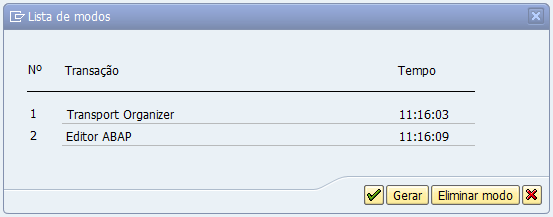
Throughout all my “SAP life” I’ve used the command /olalala to initiate the lalala transaction in a new GUI window. Until now I had never tried just writing /o. I did today. The result was interesting.

image

Meaning, it’s the same as going to SM04 and then choosing our user. But much easier.

Greetings from Abapinho

F1 + F9 = Technical Information

images/thumbnail.jpg - Thumbnail

In a functional screen I often feel the need to see technical information about a particular field. I place the cursor on the field I want, then I click on F1 and a dialog screen will appear with help for that field. Then I click on the button that says “technical information”.But there is a quick way to do the same thing using only the keyboard.

There are two possible ways for F1 to display the help for one specific field:

The SAPGui history does not work even when active?

images/thumbnail.jpg - Thumbnail

Has it ever happened to you that SAPGui does not store a history of values that you input to various fields even though the History option is actived in the settings?